Instructions
Gallery
Browse, search, and filter artifacts
Gallery
Browse, search, and filter artifacts
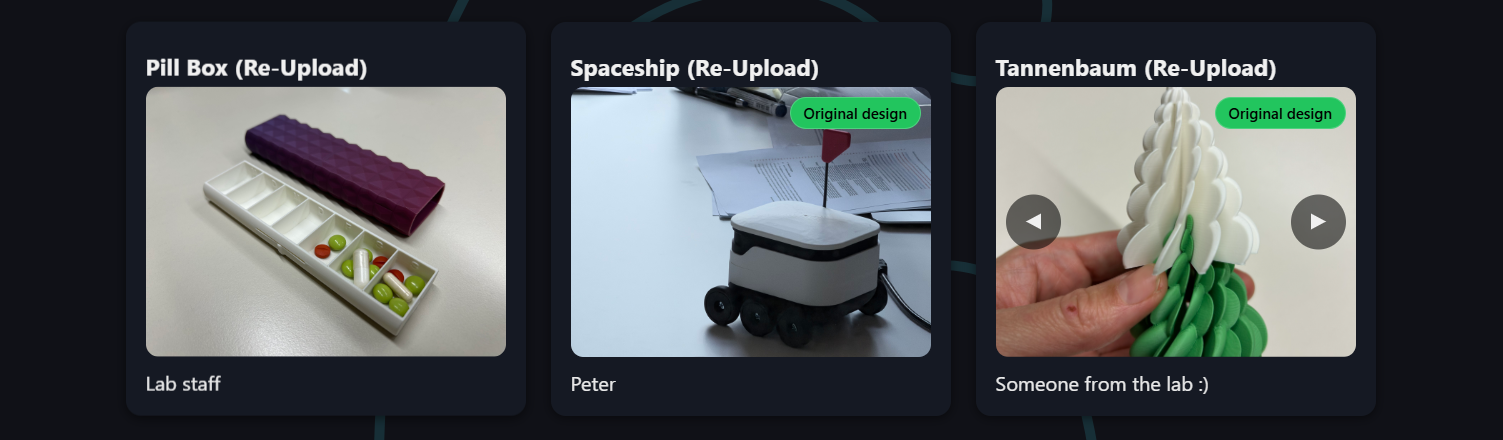
View all artifacts in the gallery.
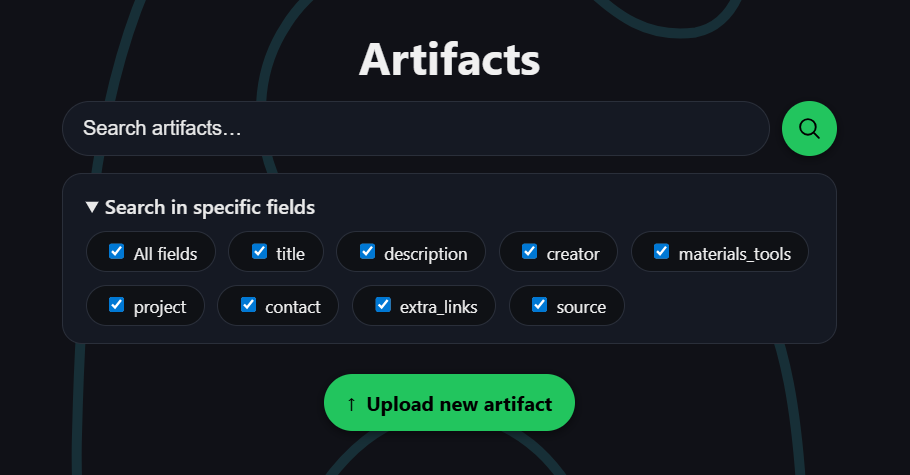
Use the search bar to find specific entries.
Restrict the query to specific fields for more precise results.
Upload
Create a new artifact entry
Upload
Create a new artifact entry
Click the upload button to begin creating a new artifact entry.
You will then be redirected to the upload form where you can enter details about your artifact and upload media files.
If you are logged in with SSO, the entry will be automatically associated with your account. Otherwise, you can upload as a guest and optionally set an edit-password to allow future edits.
Once you uploaded your artifact, an admin will have to approve it before it becomes visible in the gallery.

You will be asked whether this is an original design or a derivative work.
"Original" means you created the design from scratch, while "Derivative" means you modified an existing design.
If you select "No", you will be prompted to provide a source (e.g. link) to the original design and explain the modifications you made.

If you are the owner of the artifact or an admin, you can edit the entry without a password.
However, if you are uploading as a guest or want to allow others to edit the entry, you can set an edit-password during upload.
This password will be required for anyone (including you) who wants to edit the artifact in the future.
If you leave it blank, only owners and admins will be able to edit the entry.

Artifact Detail
View details, edit and delete
Artifact Detail
View details, edit and delete
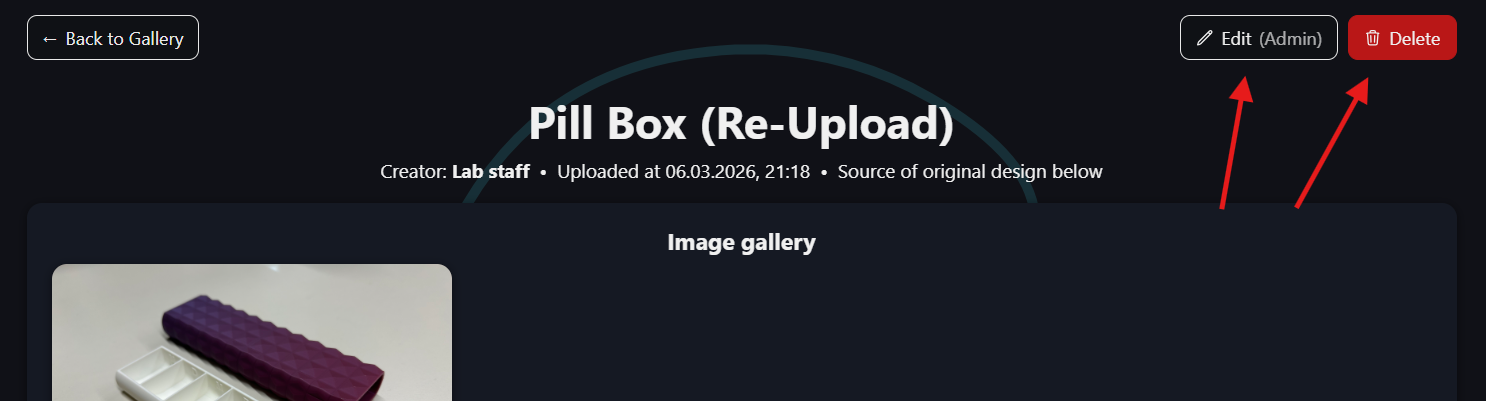
If you're the owner or an admin, use the “Edit” or “Delete” buttons in the top right corner to modify or remove the entry.
If you know the artifact password, click the locked buttons. You’ll be redirected to the password page to proceed.
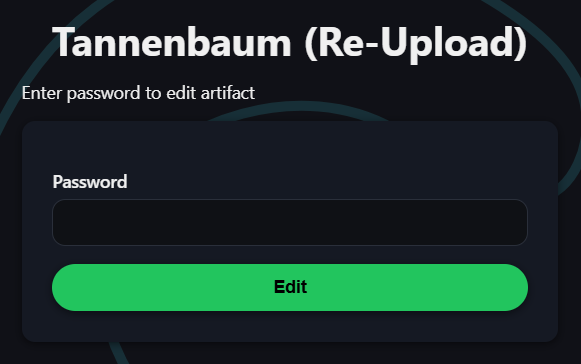
Login
via TU Wien SSO
Login
via TU Wien SSO
Click the "Login" button in the top right corner of the gallery.
You will be redirected to the TU Wien SSO login page. After successful authentication, you will be redirected back to the gallery with your account logged in.
My Artifacts
See your own uploads (SSO login required)
My Artifacts
See your own uploads (SSO login required)
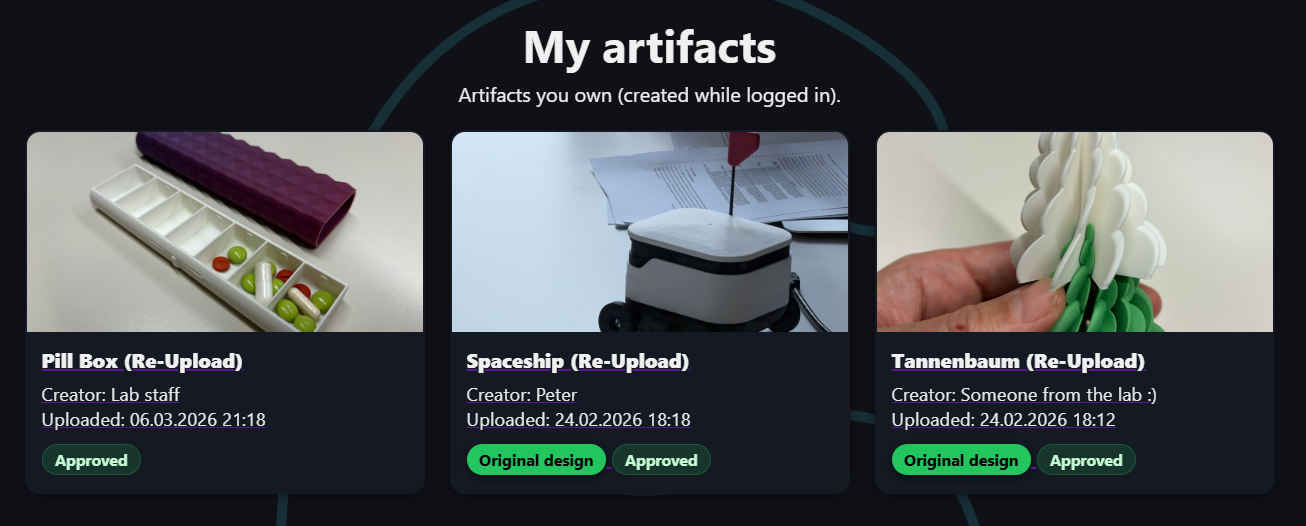
If you are logged in with SSO, you can view all your uploaded artifacts in the "My Artifacts" section of the gallery.
Here you can see all the entries you have uploaded, edit them, or delete them if needed.
Edit
Update your artifact (owner/admin/password)
Edit
Update your artifact (owner/admin/password)
To edit an artifact you own, click the "Edit" button on the artifact's detail page.
Access your artifact's detail page through the gallery or your "My Artifacts" list.
You can change fields and media, and save your changes.
Admin Approval
Uploads become public after review
Admin Approval
Uploads become public after review
If you are logged in as an admin, click on the “Manage” button in the gallery’s top right navigation bar to access the admin review page.
In the admin review page, you can see all pending uploads. By clicking “Preview”, you can review details and media, then approve or delete the entry. Select artifacts one by one or use “Select all” to approve/delete multiple entries at once. Approved artifacts become visible in the gallery for everyone.
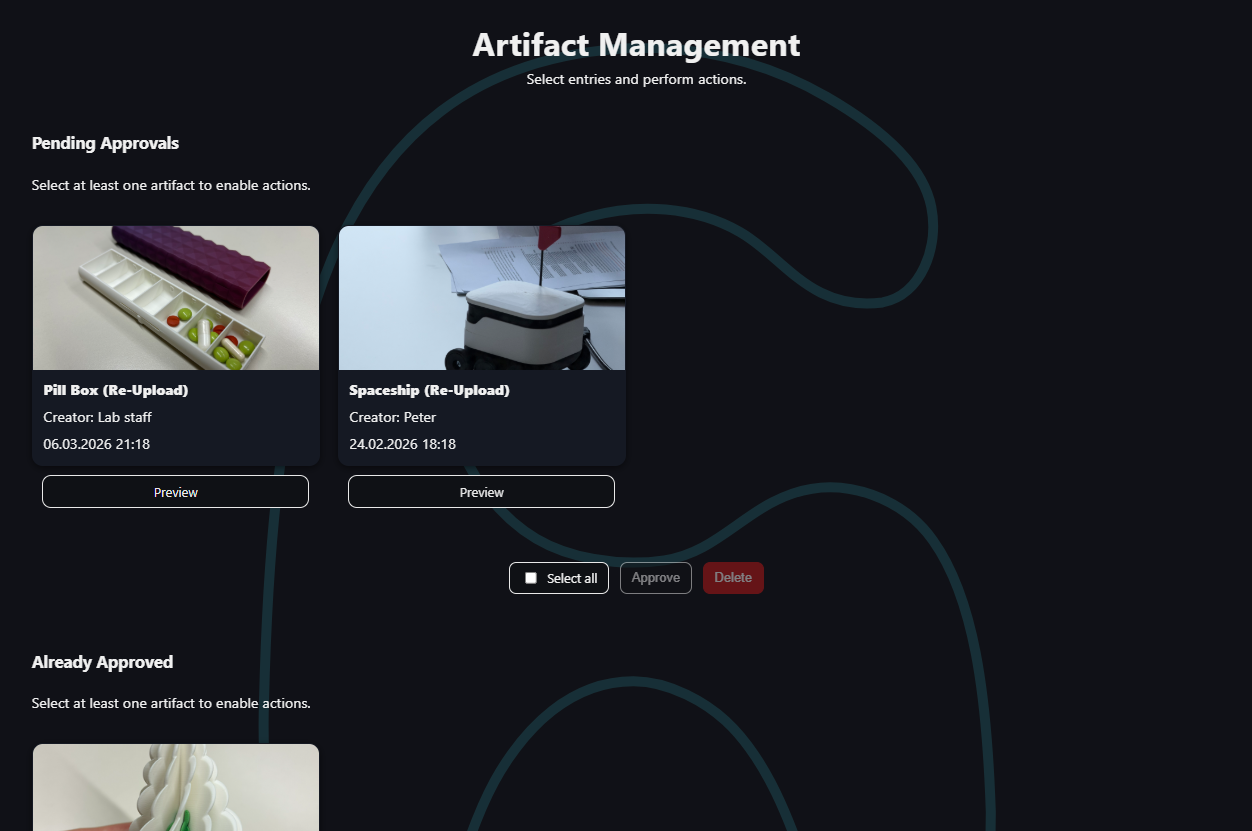
Below, you can also see already approved artifacts. You can delete artifacts or revoke their approval. Revoked artifacts are removed from the public gallery and moved back to “Pending Approval”, where they can be re-approved later.
Presentation
Fullscreen slideshow mode
Presentation
Fullscreen slideshow mode
Click the "Presentation" button in the gallery's top navigation bar to enter slideshow mode.
In presentation mode, artifacts are displayed one at a time in fullscreen, showing their media and details in a clean layout.
Images switch every 15 seconds. Videos switch after they finish playing.
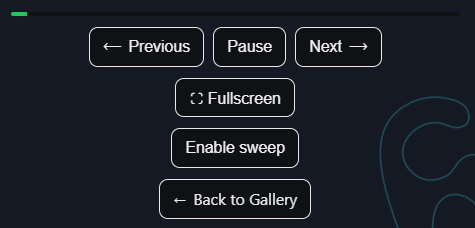
Use the left and right arrow keys on your keyboard to navigate through the artifacts.
Use the "Disable Sweep" Button to disable the sweep animation between artifact slides.
Use the Fullscreen button to enter fullscreen.
Fullscreen mode might not be supported on small mobile devices.
Press the "Esc" key to exit fullscreen mode and return to the gallery view.